
Klipsch Troubleshooting 2018
Troubleshooting the 39-KLP-REST-18 Update
- If the screen is not working (no power, or blank screen), call RSC technical support.
- If the screen is working, but shows a computer desktop instead of the Klipsch video, watch the video below.
- If the screen is working but the Klipsch app is not installed, or the USB drive is missing, follow the complete installation instructions.
Troubleshooting Guide
1. The screen shows the Android "desktop"
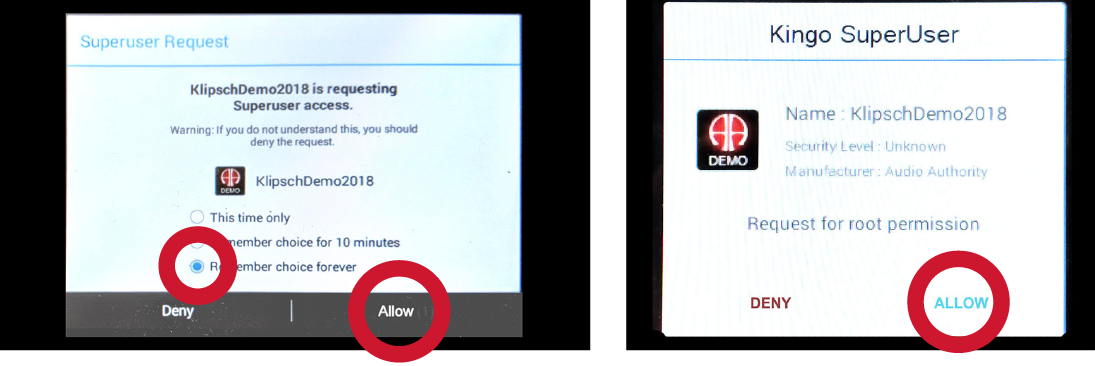
Start the Klipsch app; touch the top left 6 times to bring up the security screen. Enter 10203, and when the SuperUser permission screen comes up, select REMEMBER CHOICE FOREVER, and ALLOW.
Once the tablet reboots, repeat the previous step and confirm that SuperUser permission does not appear again.
If SuperUser permission does appear again, go to the security screen and enter 8675309. Touch the 6 dots on the bottom of the screen to see all the apps. Hold down on the Klipsch DEMO app and drag it to "uninstall". Repeat the installation instructions.
2. The screen shows the desktop, but the Superuser box does not appear
Note: SuperUser does not apply to "B Version" screens.
If the Superuser dialog box does not appear after reboot, go to the apps screen and choose SuperUser. If any of the items show “DENY” in the right column, touch and choose “ALLOW”. Reboot and make sure no other dialog boxes appear, and the demo functions normally.
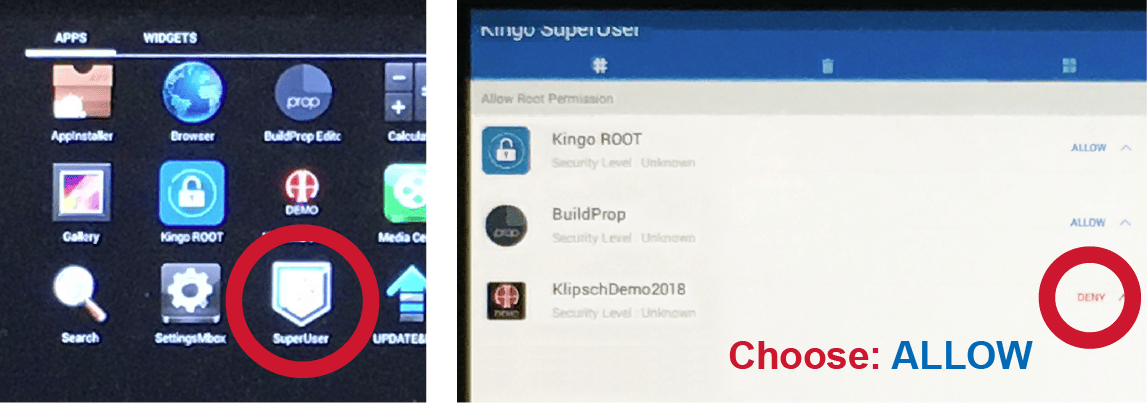
If you cannot allow SuperUser access with this method, you must uninstall the KlipschDemo app and install it again, watching for the SuperUser dialog box. See Tutorial A.
3. There is no sound
Make sure one of the two USB extension cables (the one marked “CONTROL”) is connected to the USB cable for the switching system. (The other USB extension is marked UPDATE - see below.)
Make sure the 3.5mm audio adapter and RCA cable is plugged into the aux port under the screen.
4. Screen is on, but blank, and when touched it shows the Klipsch speakers, but no videos
- USB drive is not connected - insert USB and reboot.
- USB extension cable is not connected - connect to USB port and reboot.
- USB drive is defective - order a replacement drive.
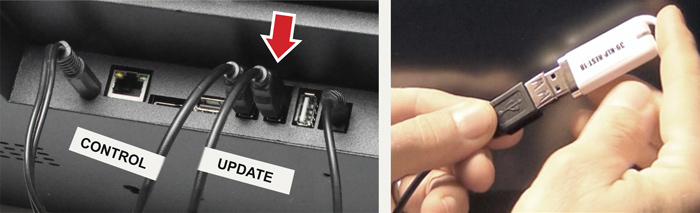
Important: Leave the USB drive connected to the screen.